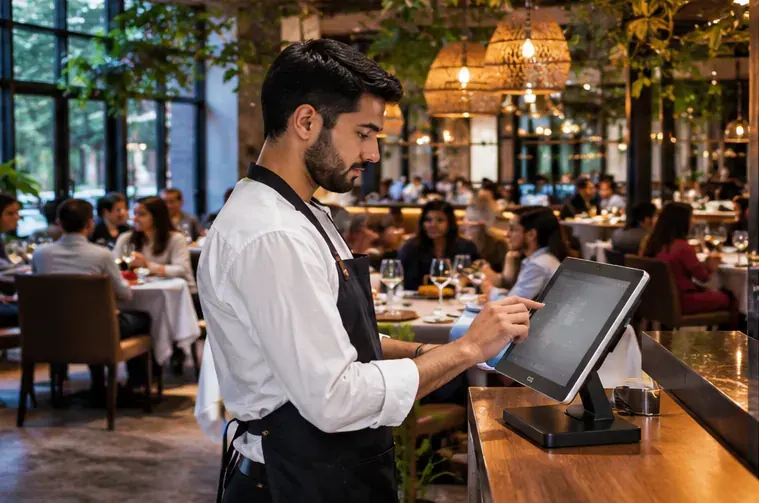
Moka POS download searches usually come from business owners who want the cashier app running before opening day. The good news is that the process is short, but the source you choose matters. The official Google Play listing offers store-managed installation and updates. An alternative APK link is also available through third-party distributor Aptoide; check the source before installing outside Google Play.
This article walks through where the app is listed, which devices suit it, what to prepare before the first sale and how to handle the small problems that sometimes appear during installation. Everything here is written for owners and managers who want a calm, practical setup rather than a technical project.

Where the Moka POS App Is Officially Listed
Moka POS publishes its cashier application under the name Moka POS – Aplikasi Kasir. On Android, the listing lives on Google Play, and on Apple devices it appears in the App Store with screenshots built around the iPad. Gojek's own Moka page also tells new merchants to install the app from these two stores.
| Platform | Store | What to look for |
|---|---|---|
| Android phones and tablets | Google Play | The listing titled Moka POS – Aplikasi Kasir |
| iPad | Apple App Store | The same app name, with iPad screenshots |
| Web browser | Moka Backoffice | Management tools reached through the official login page |
The Backoffice is not a separate download. It opens in a browser, so the only app you install on the counter device is the cashier app itself. Read the Moka POS Backoffice article for a closer look at what the browser side handles.
Devices That Suit the Moka POS App
Moka's own setup instructions mention an iPad or an Android tablet as the main counter device. Tablets give cashiers enough screen space for product grids, order details and payment steps without constant scrolling. Phones can also run the Android app, which helps owners who want a lighter setup or a backup device.
- A tablet works well as the main checkout screen at the counter.
- A phone suits small stalls, pop-up stands or quick checks away from the till.
- A stable internet connection keeps cloud data and reports in sync.
- Supported receipt printers or cash drawers can be added later if your setup needs them.
Exact operating system requirements change as the app is updated, so always confirm the current minimum version on the store listing before buying new hardware. Moka also lists compatible hardware on its official website, which is the safest reference when you are choosing accessories.
Downloading Moka POS on an Android Tablet or Phone
Find the Correct Listing
Open Google Play on the device and search for Moka POS. Check that the listing name matches Moka POS – Aplikasi Kasir and review the screenshots before tapping install. Look-alike apps with similar icons do exist in many categories, so a few seconds of checking avoids an unwanted install.
Install and Open the App
Tap Install and wait for the download to finish. Large updates can take a few minutes on a slow connection, so a reliable Wi-Fi network is helpful. Once installed, open the app from the home screen and allow any permissions that are clearly linked to features you plan to use, such as Bluetooth for a printer.
Sign In or Create Your Business Account
Existing merchants sign in with the account details already used for the Backoffice. New businesses follow the registration steps shown in the app or on the official website. Our Moka POS login article explains the sign-in side in more detail if anything feels unclear.
Getting the App on an iPad
Open the App Store on the iPad and search for Moka POS. The listing uses the same app name as Android, and its screenshots show the iPad layout. Tap Get, confirm with your Apple ID if asked and wait for the installation to complete before opening the app.
Some regional App Store pages may show the app differently or not at all, because availability is decided per country. If you cannot find it, check that the Apple ID region matches the country where your business operates, or contact Moka support for guidance on availability.
What to Prepare Before the First Sale
Installing the app takes minutes, but a smooth first trading day depends on the information behind it. Spending an hour on preparation means cashiers can focus on customers instead of searching for missing products or prices during a busy rush.
- A clean product list with names, prices and categories.
- Opening stock counts for items you want to track.
- A list of staff members and the access each person needs.
- Decisions on taxes, service charges and discounts that apply to your business.
- A quick test sale to confirm receipts and payment records look right.
Most of this information is entered once and then maintained over time. The Moka application setup article covers that preparation in a step-by-step style.
Keeping the App Up to Date
Updates bring fixes, new options and compatibility changes, so it is sensible to keep automatic updates switched on for the cashier device. Schedule larger updates outside trading hours where possible, because a restart in the middle of service can slow the queue at the counter.
Common Download Problems and Simple Fixes
| Problem | Likely cause | What to try |
|---|---|---|
| Download stays pending | Weak connection or a queue of other updates | Switch to stable Wi-Fi and pause other downloads |
| Not enough storage | Old files or unused apps | Clear space, then retry the installation |
| App not found in the store | Region or device compatibility | Check the account region and the device's system version |
| App closes after opening | Outdated system or partial update | Restart the device and install pending system updates |
If a problem continues after these checks, the official Moka help centre and support team are the right next step. They can see account-specific details that general articles cannot.
Frequently Asked Questions
The store listings show the app as free to install. Using the full point of sale service depends on Moka's current plans, which are published on the official website.
The cashier app is built for Android devices and the iPad. On a computer, owners usually work through the browser-based Backoffice rather than installing the cashier app.
Existing merchants sign in with their current account. New businesses register through the app or the official website before their first sale.
The Google Play and App Store listings always show the current version and update notes, so check them rather than third-party pages.
Conclusion
Moka POS download steps are simple once you know where to look: Google Play for Android devices and the App Store for iPad. Choosing the official listings, preparing your product and staff information and keeping the app updated will give your counter a stable start.
When the app is installed, move on to the Backoffice and product setup so the first day of trading feels organised. Visit the download section on our homepage for the official store links.